Tailoring Your Drive: 5 Essential Customization Features in Apple CarPlay iOS 26

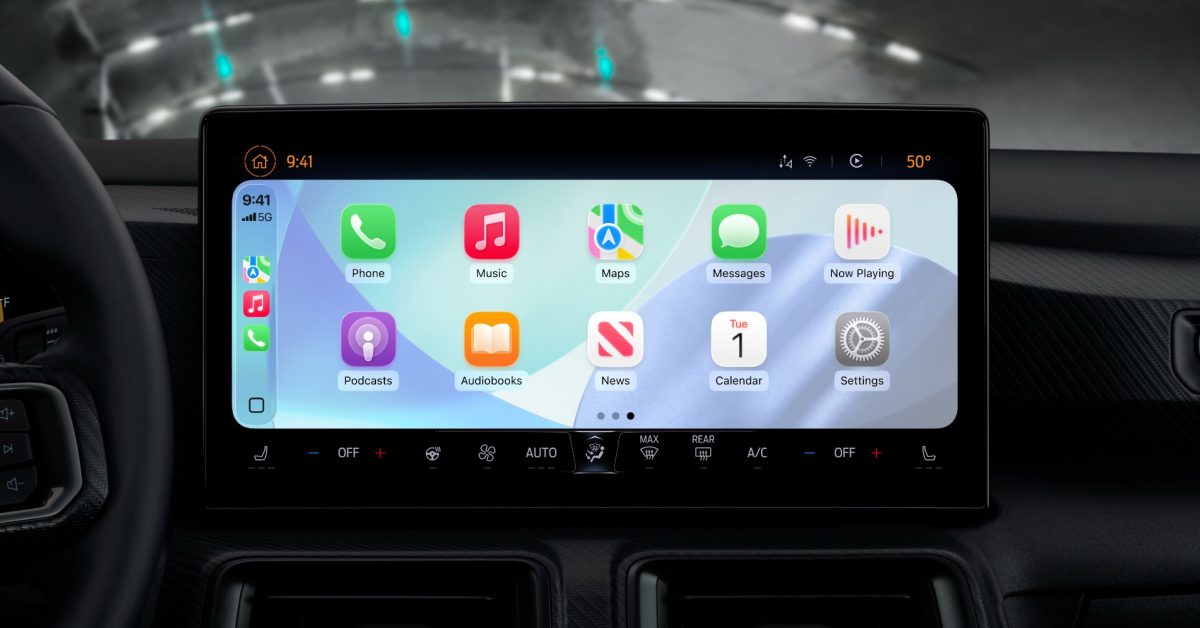
- Tailored Visuals: Smart Display Zoom and new 'Liquid Glass' icon appearances allow for a more personalized and optimized interface.
- Enhanced Utility: New widget support brings stackable, glanceable data to the Home Screen, customizable directly from your iPhone.
- Accessibility First: Drivers can now adjust system-wide text sizes, ensuring the CarPlay interface remains readable regardless of screen size or vision needs.
Elevating the In-Car Experience with iOS 26
With the release of iOS 26, Apple has significantly overhauled the CarPlay experience, shifting the focus from simple functionality to deep, user-driven personalization. For drivers who spend considerable time behind the wheel, the ability to tailor the interface to their specific vehicle and visual preferences is a game-changer. Here is how you can take full control of your dashboard.
1. Smart Display Zoom
Not every vehicle dashboard is built the same, and Apple finally acknowledges this with Smart Display Zoom. This feature dynamically optimizes the CarPlay interface to match the unique aspect ratio and physical dimensions of your vehicle’s screen. While availability depends on your car’s hardware compatibility, activating it via Settings > Display can significantly improve UI clarity and layout efficiency on non-standard displays.
2. Widget Customization
Widgets have finally arrived on CarPlay, bringing glanceable information to your dashboard. You can now manage your Home Screen stacks directly from your iPhone by navigating to General > CarPlay > [Your Car] > Widgets. Users can curate up to five widgets per stack, enabling ‘Smart Rotate’ to ensure the most relevant information—such as weather, calendar events, or music controls—is always prioritized.
3. Dynamic Wallpaper Integration
iOS 26 introduces six new wallpaper options, each derived from the latest iPhone design language. These wallpapers are not just static images; they are designed to shift dynamically between light and dark modes, ensuring your CarPlay interface remains aesthetically consistent with your cabin’s lighting and your iPhone’s theme. You can swap these out quickly via the in-car Settings menu.
4. System-Wide Text Resizing
Accessibility is a cornerstone of Apple’s design philosophy, and iOS 26 brings this to the road. You no longer have to squint at small fonts while driving. By heading to Settings > Accessibility > Text Size, you can adjust the system-wide font scale. A real-time preview appears on your display, allowing you to find the perfect balance between readability and information density.
5. Liquid Glass Icon Aesthetics
Personalization now extends to the very icons on your screen. CarPlay now offers three distinct appearances: Default, Dark, and Clear. The ‘Clear’ setting is particularly striking, applying a ‘Liquid Glass’ transparency effect to your icons. This allows your wallpaper to bleed through the UI, offering a sophisticated, modern look that can be toggled independently for light or dark modes.
These updates transform CarPlay from a standardized utility into a personalized command center. Whether you are prioritizing legibility or a specific aesthetic, iOS 26 offers the granular control that modern drivers demand.